Get Started Easy Music Manager UE5
The following is a step-by-step illustrated guide on how to set up and use the Easy Audio System in your project.
Step One: Download and Install
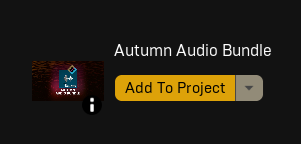
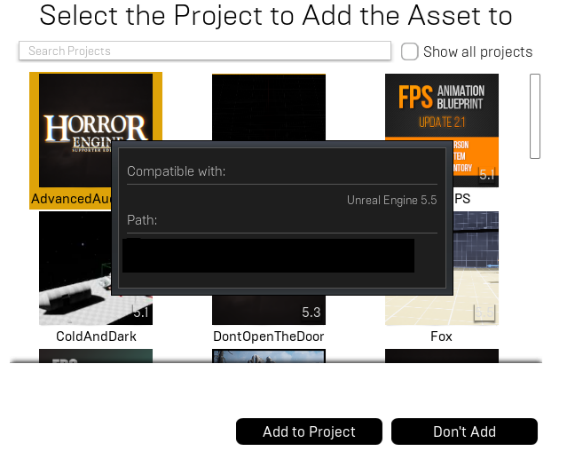
First things first you must download the most recent version of the project by clicking add to project in your Epic Games Launcher and selecting the project you wish to add the system to. (Figs 1 & 2) If the project you wish to add the system does not appear, you may need to click Show All Projects in the popup.
This system has been tested and is known to work on: Unreal Engine 5.0 through to 5.5
Step Two: Open the Easy Music Manager Folder
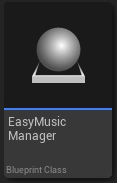
Open the Easy Music Manager folder inside of your project. Find and select the EasyMusicManager blueprint.
Step Three: Drag the Blueprint into the World
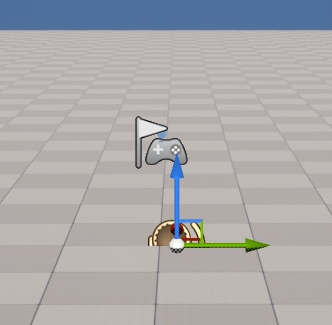
Drag the Easy Music Manager into the world.
Step Four: Add Tracks to the Playlist
Add tracks to the section titled: Playlist Default.
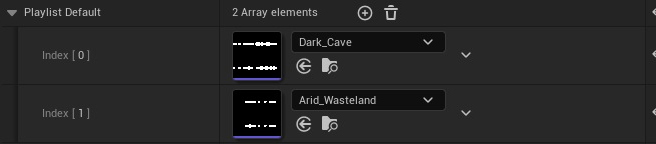
That’s it! The system is now working and has already been set up for most tracks. The following are additional options.
Optional: Adding Tracks to the Array
Click the (+) button to add a new track to the array.
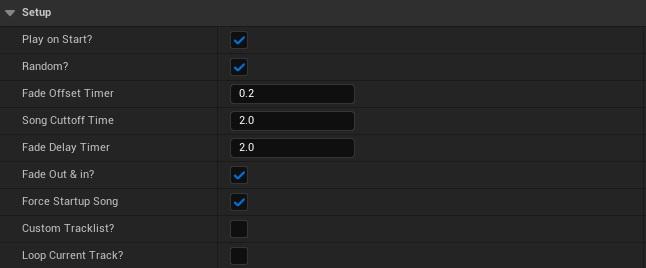
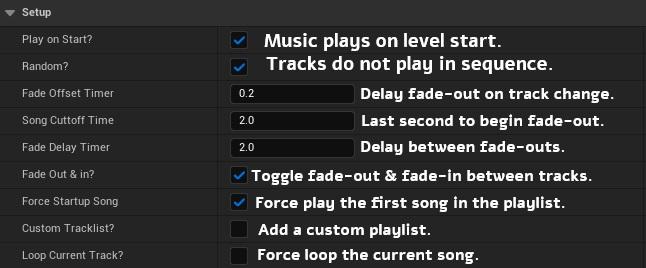
Simply change the options as you’d like to get the system working how you want! You do not have to do this by default, as the system is mostly automated.
And that’s it! If you have any more questions, feel free to read below or reach out!
Version History
- v1.0: Current Release
Known Bugs
None.
Please report any bugs found via Discord or email support@hatchfoxstudios.com.au.
Next Steps
For troubleshooting and common issues, see the Troubleshooting Guide.